

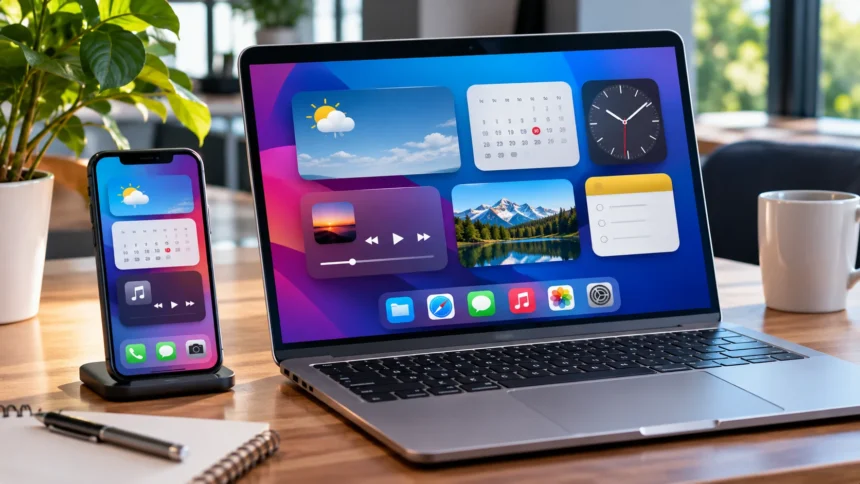
What Does Widget Mean in Technology?
A widget is a small software component that displays information or provides a specific function within a larger digital environment. You can find widgets on smartphone home screens, computer desktops, websites, and applications. Common examples include weather updates, digital clocks, calendars, and search boxes. These tools help users access useful features without opening a separate application or navigating through multiple menus.
The meaning of a widget can change slightly depending on where the term is used. In mobile technology, widgets often display live information from installed applications. On websites, they may provide interactive features such as contact forms, customer support chats, or booking calendars. In software development, widgets can refer to individual interface elements that help users interact with digital products.
Understanding widget meaning becomes easier when you recognize how frequently these components appear in everyday technology. Most internet users interact with widgets without paying attention to their technical names. Whether you are checking the weather or using an online calculator, a small interface component may be handling the task. Widgets make digital experiences more convenient, organized, and accessible.
Common Types of Widgets You See Every Day
Information widgets are among the most recognizable types of digital widgets. They present useful details without requiring users to search through an entire application. Examples include weather forecasts, stock market summaries, battery indicators, and calendar schedules. These widgets often update automatically when new information becomes available, although the refresh frequency depends on the application and device settings.
Interactive widgets allow users to perform actions directly through a compact interface. A music control widget might let someone pause a song or skip to another track. Similarly, a smart home widget may provide buttons for controlling compatible lights and connected devices. These components reduce unnecessary navigation by placing frequently used controls within easy reach.
Utility widgets focus on completing practical tasks rather than displaying general information. Examples include calculators, timers, note-taking tools, and search fields. Some utility widgets are simple, while others connect to larger applications and online services. Their main purpose is to make routine activities easier by offering focused functionality through a smaller, more accessible interface.
Smartphone Widgets on Android and iPhone
Smartphone widgets provide quick access to information and selected application features directly from the home screen. Android users commonly encounter weather forecasts, calendar reminders, search bars, and music controls. Many widgets can be resized or arranged according to personal preferences. Available options depend on the device manufacturer, operating system version, and applications installed on the phone.
Apple’s iPhone also supports widgets that display information from compatible applications. Users can place supported widgets on the Home Screen, Lock Screen, or in dedicated widget areas. Examples include battery status, upcoming appointments, weather conditions, and activity summaries. Some widgets also support interactive actions, depending on the application and the capabilities of the installed iOS version.
Mobile widgets are especially helpful when users want information without repeatedly opening applications. Someone preparing for work might check the weather, review appointments, and monitor battery levels from one screen. However, displaying constantly changing information can involve additional network activity and system resources. Choosing useful widgets and limiting unnecessary updates can support a more organized mobile experience.
Desktop Widgets on Windows and Mac Computers
Desktop widgets extend the same convenience to laptops and personal computers. Depending on the operating system, they may display weather reports, reminders, news, calendar information, or other useful details. These components allow users to review selected information while working on unrelated tasks. Their appearance and availability depend on the computer’s operating system and software configuration.
Windows provides widget features that can display personalized information through a dedicated interface. Users may encounter weather summaries, financial updates, sports information, and other supported content. The available experience can vary across Windows versions and regional settings. Widgets are intended to provide convenient access to information without requiring users to manually visit multiple websites.
Mac computers also support widgets that present information from compatible applications. Users can access supported widgets through system interfaces and, on supported versions, arrange them on the desktop. Calendar events, reminders, weather conditions, and time-related information are common examples. Desktop widgets can improve convenience, but excessive visual elements may also distract users from important work.
Website Widgets and Their Everyday Examples
Website widgets are small functional components embedded within webpages to provide specific features. They may help visitors search for information, communicate with businesses, or complete simple tasks. Common examples include customer support chat windows, appointment booking calendars, and newsletter subscription forms. Website owners use these components to make important functions easier to find and access.
A live chat widget is one of the most familiar examples of website functionality. It usually appears as a small icon near the edge of a webpage. When selected, it opens a conversation interface where visitors can ask questions or request assistance. Depending on the service, responses may come from human support agents, automated systems, or a combination of both.
Other website widget examples include social media feeds, customer review displays, location maps, and currency converters. An online business might display a review widget to help visitors understand customer experiences. A service provider may use a booking widget to simplify appointment scheduling. These tools can improve usability when their design matches the website’s purpose and visitor needs.
What Is a Widget in WordPress?
In WordPress, widgets traditionally refer to content blocks or functional elements placed in designated areas of a website. These areas often include sidebars, footers, and other theme-supported sections. Website owners can use widgets to display navigation links, recent posts, search features, or additional information. Their availability and placement depend on the active WordPress theme and editing system.
Modern WordPress installations commonly use a block-based approach for supported widget areas. This allows website administrators to add and arrange different blocks without writing custom code. For example, a blog owner might place a search block in the sidebar and a list of recent articles in the footer. These features help visitors discover content and navigate the website.
WordPress widgets should not be confused with plugins, even though plugins can provide additional widget functionality. A plugin adds features or extends website capabilities, while a widget displays or provides a particular interface function. Some plugins include blocks or widgets that can be placed within a website layout. Understanding this distinction helps beginners manage WordPress websites more confidently.
Widgets in E-Commerce and Online Shopping
E-commerce websites frequently use widgets to make shopping more convenient and interactive. Product recommendation sections, shopping cart summaries, and customer review displays are familiar examples. These components help visitors access relevant information during the buying process. When implemented effectively, they reduce unnecessary steps and make it easier for shoppers to understand products and available purchasing options.
A product recommendation widget might display related items beneath a product description. Its suggestions may be based on product categories, manually selected relationships, or other recommendation methods. Another widget could display recently viewed products, allowing customers to return to items they previously explored. These features support product discovery without requiring visitors to start their searches again.
Shipping calculators, availability indicators, and discount information can also appear as shopping widgets. A shipping calculator may estimate delivery charges after a customer enters a destination. Meanwhile, a stock availability component can display information received from the store’s inventory system. Accuracy matters because outdated pricing or availability details can confuse customers and reduce trust.
User Interface Widgets in Software Development
In software development, a widget can refer to a reusable graphical component that forms part of an application’s interface. Buttons, text fields, sliders, menus, and checkboxes are common examples. Developers combine these elements to create interactive screens. Each component serves a particular purpose, helping users enter information, make selections, or control how an application behaves.
A login form illustrates how several interface widgets can work together. Text input fields collect a username and password, while a button submits the information for processing. A checkbox might allow users to select a preference, depending on the application’s design. These components form a functional interface without requiring developers to build every interaction entirely from scratch.
Some development frameworks use the word widget as a central concept for building application interfaces. Flutter, for example, uses widgets to describe many parts of an application’s visual structure and behavior. Other frameworks may use terms such as components or controls for similar elements. Although terminology differs, reusable interface building blocks are important for maintaining consistent software design.
How Do Widgets Actually Work?
Widgets operate by communicating with the application, website, or system that provides their functionality. Some display information already stored on a device, while others retrieve updated information through software services or internet connections. A weather widget, for example, may receive forecast data from an external service. It then presents selected details through a compact visual interface.
Different widgets use different methods for updating their content. A digital clock may depend on the device’s system time, while a stock market widget may request new information periodically. Interactive widgets can also send instructions back to their supporting applications. The exact behavior depends on operating system permissions, application design, network availability, and software capabilities.
Many widgets rely on application programming interfaces, commonly called APIs, to communicate with other systems. APIs define how software components request and exchange information. For example, a currency conversion widget might use an exchange-rate API to obtain updated values. Developers must handle unavailable services, inaccurate responses, and connection problems to keep these widgets reliable.
Widget vs App, Plugin, and Shortcut
A widget and an application are related, but they are not necessarily the same thing. An application is generally a complete software product designed to perform one or more tasks. A widget usually provides a smaller function or simplified view within another environment. For instance, a calendar application manages appointments, while its widget may display upcoming events on a home screen.
A plugin differs from a widget because it primarily extends the capabilities of an existing software platform. A website plugin might introduce contact form functionality, performance tools, or additional payment methods. A widget can then provide the visible interface for one of those functions. However, specific software platforms may use these terms differently, so their exact roles depend on context.
Shortcuts are another commonly confused feature. A shortcut typically opens an application, file, webpage, or predefined action without presenting the same ongoing information as a widget. Some modern widgets include buttons that behave like shortcuts, creating an overlap between these tools. The main distinction is that widgets can display information or support interactions directly within their assigned interface area.
Benefits and Limitations of Using Widgets
One major benefit of widgets is convenient access to frequently needed information. Instead of opening several applications, users can review selected details from a single screen. Widgets also support personalization by allowing people to arrange useful features around their routines. A well-organized collection of widgets can make everyday digital tasks faster and more comfortable.
Widgets can also improve website functionality and application usability. A search widget helps visitors locate information, while a support widget creates a direct communication channel. However, poorly designed widgets may clutter screens or interrupt the browsing experience. Excessive animations, unnecessary notifications, and intrusive popups can make digital environments more frustrating rather than more helpful.
Performance and privacy are additional considerations when using widgets. Some components collect information, request permissions, or connect to external services to provide their features. Others may increase resource usage through frequent updates or complex scripts. Users and website administrators should choose trustworthy providers, review permissions, and remove unnecessary widgets that contribute little practical value.
How to Choose, Customize, and Manage Widgets
Choosing the right widgets begins with identifying which tasks or information you access most frequently. A student might prefer a calendar, reminders, and study timer, while an office worker may prioritize meetings and task updates. Adding too many components can make a screen difficult to navigate. Selecting a smaller collection of useful widgets usually creates a clearer experience.
Customization options vary between devices, applications, and website platforms. Some widgets support different sizes, layouts, themes, and information preferences. Others provide only basic settings or fixed designs. When customizing a widget, focus on readability, accessible controls, and information that genuinely supports the intended task. A simple layout is often more practical than an overloaded interface.
Regular maintenance helps keep widgets useful and secure over time. Review application permissions, install appropriate updates, and remove components that no longer serve a purpose. Website administrators should also test widgets on mobile devices and confirm that they do not interfere with page performance. These habits help maintain a dependable experience as software and user requirements change.
Conclusion
Understanding widget meaning helps explain many of the small digital tools people use every day. Widgets display information, provide interactive controls, and connect users with features inside larger software environments. Examples include weather forecasts, search boxes, music controls, and customer support chats. Although their designs differ, these components share the goal of making technology easier to use.
Widgets appear across smartphones, computers, websites, online stores, and software applications. Some provide simple information, while others support complex interactions and connect with external services. Their usefulness depends on functionality, placement, compatibility, and design quality. Understanding how they work makes it easier to choose appropriate widgets for personal use or digital projects.
The best widgets provide meaningful convenience without introducing unnecessary complexity. Users should prioritize reliable features, readable interfaces, appropriate permissions, and manageable performance requirements. Website owners and developers should apply the same principles when selecting interactive components. With thoughtful choices, widgets can create more accessible, organized, and efficient digital experiences across different devices and platforms.
Frequently Asked Questions (FAQs)
What is a widget in simple words?
A widget is a small digital tool that displays information or provides a specific function. Common examples include weather updates, clocks, calendars, search fields, and music controls on phones, computers, or websites.
What is an example of a widget?
A weather widget on a smartphone is a common example. It displays current conditions and forecast details directly on the home screen, allowing users to check information without opening the full weather application.
What is the difference between an app and a widget?
An app is usually a complete software program with multiple features. A widget provides a smaller function or information display, often connected to an application, without requiring users to open its full interface.
Are widgets free to use?
Many widgets are free and included with operating systems or applications. However, some require paid subscriptions, premium software features, or third-party services. Availability and pricing depend on the widget provider.
Can widgets slow down a phone or website?
Yes, some widgets may affect performance when they use excessive resources, request frequent updates, or load complex scripts. Choosing well-designed widgets and removing unnecessary components can help maintain better performance.