
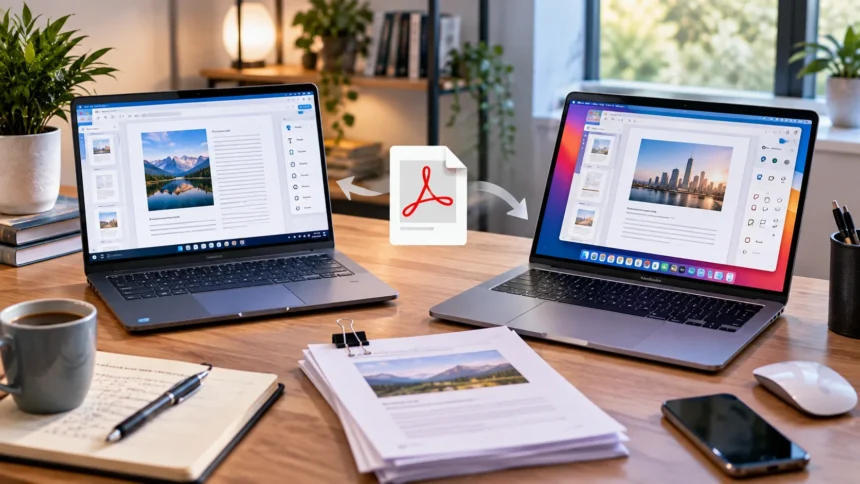
PDF files are used everywhere, from contracts and invoices to reports, application forms, research papers, and study materials. While almost every computer can open a PDF, editing one properly often requires dedicated software. The best PDF editors let you change text, modify images, organize pages, sign documents, convert files, and work with scanned documents without destroying the original formatting.
Windows and Mac users have plenty of options, ranging from professional document suites to lightweight tools for occasional edits. Adobe Acrobat remains one of the best-known choices, but alternatives such as Foxit PDF Editor, PDFelement, PDFgear, UPDF, Nitro PDF Pro, and PDF Expert can be better for particular budgets or workflows. Choosing the right one starts with knowing exactly what you need to edit.
Adobe Acrobat Is Best for Comprehensive PDF Work
Adobe Acrobat is one of the most complete PDF editors for Windows and Mac. It is designed for users who regularly need to edit text and images, reorganize pages, create forms, convert documents, redact confidential information, and collect electronic signatures. Its broad toolset makes it particularly useful for businesses dealing with formal documents every day.
Acrobat also handles scanned documents through optical character recognition, commonly called OCR. This technology can identify text inside scanned pages and make previously image-only documents more searchable and editable. Professionals working with contracts, archived files, printed reports, and paperwork can save considerable time when OCR replaces manual retyping.
The main drawback is that Acrobat can be more expensive and feature-heavy than casual users need. Someone who only occasionally highlights a PDF or rearranges pages may not use enough of its advanced capabilities to justify the cost. For frequent professional document work, however, its editing depth and established workflow make it a strong all-around option.
Foxit PDF Editor Is Strong for Business Users
Foxit PDF Editor provides many professional PDF tools while offering an interface that may feel familiar to people accustomed to Microsoft Office applications. Users can edit text, modify images, organize pages, create forms, add comments, and work with document security tools. It is suitable for both individuals and teams handling regular business documentation.
OCR capabilities make Foxit useful for scanned documents, while conversion features help move information between PDF and common office file formats. Businesses can also use tools for redaction, document comparison, and other structured workflows. These capabilities make Foxit a practical alternative when users want professional features without automatically choosing Adobe.
Like many advanced PDF editors, Foxit may be more than someone needs for occasional annotation or form filling. Its strongest value appears in offices where PDFs are part of everyday operations. Teams comparing several professional editors should consider interface preferences, collaboration requirements, licensing costs, and the particular document features employees actually use.
PDFelement Offers an Easy All-Around Experience
Wondershare PDFelement is a flexible PDF editor available for both Windows and Mac. It supports editing existing text and images, organizing pages, converting files, working with forms, adding annotations, and processing scanned documents with OCR. Its interface is designed to make these features accessible without requiring users to understand complicated professional publishing software.
PDFelement can work particularly well for students, freelancers, small businesses, and office professionals who need more than basic PDF annotation. Batch-processing features can also be useful when the same action needs to be applied across several documents. This saves time when converting, organizing, or preparing larger collections of files.
The software sits between very simple PDF tools and heavier enterprise-focused solutions. Users can perform substantial document editing without navigating an excessively technical interface. Before choosing it, compare the plan that includes the particular OCR, conversion, AI, or advanced features you need because availability may differ depending on the subscription or license.
PDFgear Is a Good Choice for Budget-Conscious Users
PDFgear is worth considering when your priority is completing common PDF tasks without immediately purchasing an expensive professional package. It can handle activities such as reading, annotation, basic editing, page organization, and document management. This makes it appealing to students, home users, and professionals who only occasionally need to change PDF content.
A lightweight PDF editor can be more comfortable than an enterprise suite when your normal tasks are relatively simple. Adding text, signing a document, rearranging pages, or making small changes should not require learning dozens of advanced tools. PDFgear aims to provide a straightforward workflow for these everyday document needs.
Users working with complicated contracts, intensive redaction, highly structured forms, or large enterprise workflows may still prefer a more advanced editor. The right choice depends on how demanding your PDF work actually is. For routine personal and office tasks, starting with a simpler solution can prevent you from paying for features you rarely touch.
UPDF Is a Modern Cross-Platform PDF Editor
UPDF provides a modern interface and a broad selection of editing tools across Windows and Mac. Users can modify text and images, annotate documents, organize pages, convert PDFs, and work with OCR depending on available features. Its clean design makes it attractive to people who want substantial functionality without a traditional enterprise-software appearance.
Cross-device availability can be useful for people who regularly move between computers, tablets, and smartphones. A document started on a laptop may need to be reviewed later on another device, so consistent access can simplify mobile workflows. This is especially convenient for freelancers, students, remote workers, and professionals who travel frequently.
UPDF also competes by combining traditional document tools with newer AI-assisted functions in certain plans. Those features may help with summarizing or understanding long documents, although they should not replace careful review of important contracts, financial documents, or legal material. Choose based primarily on dependable editing features rather than selecting software only because it includes AI.
Nitro PDF Pro Works Well for Office-Style Workflows
Nitro PDF Pro is another established option for users who spend significant time editing and managing PDFs. Its interface is designed around familiar office-style controls, which can make adoption easier for employees already comfortable with common productivity software. Editing, conversion, signing, forms, and document organization are among the tasks it is designed to handle.
Businesses may appreciate the ability to work with professional documents without completely changing the way employees already interact with office software. PDF conversion can be especially useful when information needs to move between editable documents and fixed-layout PDFs. Tools for signatures and document handling also support common administrative workflows.
Nitro makes the most sense for users who need a dedicated professional PDF environment rather than a lightweight viewer. Licensing and feature availability should be compared carefully with alternatives before committing a team. If your workplace handles large numbers of PDFs, even small differences in interface efficiency can matter significantly over time.
PDF Expert Is a Great Choice for Mac Users
PDF Expert is particularly attractive to people who mainly work on Mac and prefer software that feels closely aligned with the Apple experience. Its clean interface makes common actions such as reading, annotating, editing, signing, and arranging PDF pages easy to find. This simplicity can make document work feel faster than using a larger enterprise-focused suite.
The software works well for professionals and students who frequently read and mark up documents. Reviewing reports, annotating study material, filling forms, and making edits can all fit naturally into a Mac-centered workflow. Users who value visual polish and straightforward navigation may find those qualities more important than having every specialist PDF feature available.
Its biggest limitation is platform fit. A team containing many Windows users may prefer software with equally strong support across both operating systems. For individuals who work primarily within Apple’s ecosystem, however, PDF Expert can provide a refined balance between everyday editing capabilities and an interface that does not feel unnecessarily complicated.
Look for OCR When Editing Scanned PDFs
OCR should be one of your priorities if you regularly work with scanned documents. A normal scan is often simply an image of a page, which means the text cannot be edited or searched in the same way as text created digitally. OCR analyzes the image and attempts to recognize letters, numbers, and document structure.
Good OCR can transform old paperwork, receipts, printed reports, research material, and scanned contracts into much more useful files. Instead of manually typing an entire page, you may be able to search for information or edit recognized text directly. Accuracy still depends on factors such as scan quality, handwriting, unusual fonts, and complicated page layouts.
Not every user needs advanced OCR, so do not pay extra automatically. If nearly all your PDFs are created digitally, ordinary editing tools may cover everything you need. Students, legal teams, accountants, researchers, and offices that digitize large amounts of paper are more likely to benefit from strong OCR functionality.
Consider Security, Redaction and Electronic Signatures
PDF editors often handle sensitive documents, so security features deserve more attention than they sometimes receive. Business files may contain financial information, customer details, contracts, employee records, or confidential project information. Look for appropriate password protection, permissions, redaction, and signing tools when those documents are part of your normal workflow.
Redaction is particularly important because drawing a black rectangle over confidential text is not necessarily the same as permanently removing that information. Proper redaction tools are designed to remove sensitive content so it cannot simply be revealed later. This matters when sharing documents containing identification numbers, addresses, financial figures, or confidential business information.
Electronic signing can also reduce the need to print, sign, scan, and resend documents. If your work regularly involves agreements or approvals, consider how the editor handles signatures and whether its workflow meets your requirements. Different organizations may have specific compliance or identity-verification needs, so business-critical signing should be evaluated carefully.
Connect PDF Editing With Team Workflows
PDF editing becomes more valuable when documents remain connected with the projects and responsibilities they support. A marketing team may review proposals, while finance handles invoices and HR manages forms or employment documents. Clear file names, version control, shared storage, and defined ownership help prevent edited PDFs from becoming scattered across email threads.
Teams already using task management apps can connect document work with specific projects, deadlines, reviewers, and approvals. Instead of emailing a PDF repeatedly and wondering who has the latest version, the document can remain associated with the task that explains what needs to happen next.
Consider collaboration requirements when choosing a PDF editor for several employees. Comments, shared reviews, cloud access, signatures, and permission management may matter more than one advanced editing feature. The best business PDF solution should fit the complete workflow from receiving a document through editing, review, approval, sharing, and final storage.
How to Choose the Best PDF Editor for Your Needs
Start by listing the PDF tasks you perform most often. Basic users may only need annotation, page organization, form filling, and signatures, while professionals may require direct text editing, OCR, conversion, redaction, batch processing, and document comparison. Knowing your requirements prevents you from purchasing software based on features that sound impressive but remain unused.
Next, consider your devices and operating systems. An individual Mac user can comfortably choose a Mac-focused product, while businesses with Windows and Mac employees benefit from consistent cross-platform software. Mobile access may also matter when staff frequently review, sign, or annotate documents while traveling or working away from their desks.
Finally, compare free limitations, paid plans, ease of use, storage options, and security features before deciding. Test the editor on a few real documents whenever a trial or free version is available. A tool that handles your complicated files reliably is more valuable than one that looks excellent in screenshots but struggles with your everyday workflow.
Conclusion
The best PDF editors for Windows and Mac depend on how deeply you need to modify documents. Adobe Acrobat provides a comprehensive professional environment, while Foxit, PDFelement, Nitro PDF Pro, and UPDF offer capable alternatives for different workflows. PDFgear can suit lighter budgets, while PDF Expert is particularly attractive for people working primarily on Mac.
Do not choose software only because it has the longest feature list. Consider whether you need OCR, redaction, electronic signatures, batch processing, conversion, collaboration, or simple text editing. A lightweight PDF editor can be the smartest option for occasional work, while professional users may save considerable time by investing in deeper document tools.
Test your preferred options using the kinds of files you handle regularly before committing to a long-term plan. Check formatting accuracy, editing speed, scanned-document performance, security features, and ease of navigation. The right PDF editor should make document work faster and more dependable without adding unnecessary complexity to your Windows or Mac workflow.
FAQs
What is the best PDF editor for Windows and Mac?
Adobe Acrobat is a comprehensive choice, while Foxit, PDFelement, UPDF, and Nitro PDF Pro provide strong alternatives. The best option depends on your editing, OCR, signing, security, and budget requirements.
Is there a good free PDF editor for Windows and Mac?
PDFgear can be useful for people who want common PDF tools without immediately paying for professional software. Free capabilities vary, so check whether the specific editing or OCR feature you need is included.
Which PDF editor is best for Mac users?
PDF Expert is an appealing Mac-focused choice because of its clean interface and straightforward editing experience. Adobe Acrobat, PDFelement, Foxit, and UPDF are alternatives when you also need broader cross-platform support.
What is OCR in a PDF editor?
OCR means optical character recognition. It identifies text inside scanned pages or image-based documents, making that content searchable and, depending on the editor, potentially editable without manually retyping the entire document.
Do I need a paid PDF editor?
Not necessarily. Free software may be enough for reading, annotations, signatures, and occasional basic edits. A paid editor becomes more useful when you regularly need OCR, redaction, conversions, forms, or professional document workflows.