

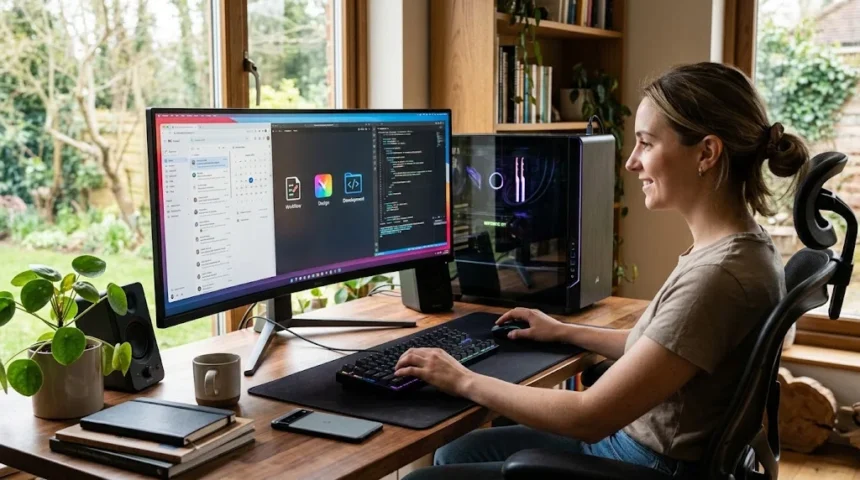
A desktop computer is a personal computing device designed primarily for regular use at a fixed location such as a desk, office workstation, classroom, or home setup. Unlike laptops, desktop PCs generally consist of separate components, including a computer case, monitor, keyboard, and mouse. They are widely used for work, gaming, education, creative projects, programming, communication, and everyday internet activities.
Desktop computers remain important even as laptops, tablets, and smartphones have become more powerful. Their larger form factor provides room for stronger processors, dedicated graphics cards, additional storage drives, better cooling systems, and more connectivity options. Users can also replace or upgrade many internal components, giving desktops a longer practical lifespan compared with devices that have permanently integrated hardware.
Modern desktop computers range from affordable systems intended for web browsing and office applications to high-performance workstations built for artificial intelligence, engineering, video production, and 3D rendering. Gaming desktops occupy another major category, combining powerful graphics hardware with fast processors and cooling solutions. Understanding how desktop computers work, their features, and their different uses makes it easier to decide whether one suits your needs.
What Is a Desktop Computer?
A desktop computer is a type of personal computer intended to remain in one primary location rather than being carried regularly. Traditional desktop setups include a system unit containing the main hardware, along with an external monitor and input devices. Because portability is not the main design priority, manufacturers can use larger and more powerful components.
The term desktop PC covers several designs, including traditional tower computers, compact desktops, mini PCs, workstations, and all-in-one systems. Although their appearance differs, they perform the same fundamental task of processing digital information and running software. The operating system provides the interface through which users access applications, files, settings, and connected devices.
Desktop computers can be used independently or connected to networks, cloud platforms, servers, and peripheral devices. A home user might use a desktop for browsing and entertainment, while a company may deploy hundreds across its offices. Their versatility has helped desktop computers remain valuable across personal, professional, technical, and educational environments.
How Does a Desktop Computer Work?
A desktop computer works by receiving instructions, processing data, storing information, and producing an output that users can understand. When you open an application, the operating system coordinates the processor, memory, storage, and other components required to run it. The results are then displayed on the monitor or sent to another connected device.
The central processing unit, or CPU, performs calculations and executes instructions required by software. Random access memory temporarily holds information that applications need immediately, while storage devices preserve files even when the computer is turned off. These components continuously exchange information through the motherboard, which acts as the computer’s main communication platform.
Input devices allow users to provide instructions, while output devices communicate the results. For example, moving a mouse sends input to the system, which processes the movement and changes the pointer position displayed on the monitor. Millions or billions of similar operations happen every second, creating the responsive computing experience users expect from modern desktops.
Main Components of a Desktop Computer
The system unit contains most of the essential desktop computer hardware. Inside the case are components such as the motherboard, CPU, RAM, storage drives, power supply, cooling equipment, and sometimes a dedicated graphics card. Each component performs a specialized role, but they must work together correctly for the computer to operate reliably.
External components typically include a monitor, keyboard, and mouse. Users may also connect speakers, microphones, webcams, printers, external drives, drawing tablets, scanners, and other peripherals. Unlike laptops, which integrate many of these elements into one enclosure, desktop computers allow users to choose individual accessories that better match their preferences.
Some desktop designs combine several components to reduce the amount of physical space required. An all-in-one computer, for example, places most internal hardware behind the display, reducing cable clutter. Mini PCs use compact enclosures while still connecting to separate monitors and peripherals, offering an alternative for users who want desktop functionality without a large tower.
The Role of the CPU in a Desktop Computer
The CPU is often described as the brain of the computer because it executes instructions required by applications and the operating system. Processor performance affects how quickly the system completes calculations, opens programs, handles multitasking, and performs demanding workloads. Modern CPUs typically contain multiple processing cores that can work on several tasks simultaneously.
CPU requirements depend heavily on what the desktop will be used for. Basic web browsing, document editing, and email do not require the same processing power as 3D rendering, video editing, software development, or scientific computing. Choosing an excessively powerful CPU may add unnecessary cost, while selecting an underpowered processor can limit performance.
Desktop processors often have advantages over comparable mobile processors because larger systems provide greater cooling capacity and power availability. Better cooling can help processors maintain stronger performance for extended workloads. Many desktop systems also allow the CPU to be replaced, although compatibility depends on the motherboard socket, chipset, power requirements, and other hardware factors.
What RAM Does in a Desktop PC
Random access memory provides temporary working space for the software currently running on a desktop computer. When you open a browser, document editor, game, or creative application, some of the information needed by that program is placed in RAM. Faster access to this temporary data allows the computer to respond efficiently.
Having insufficient RAM can make a desktop feel slow when several programs or browser tabs are open simultaneously. The system may need to move information between memory and slower storage, reducing responsiveness. Modern operating systems and applications can consume considerable memory, so choosing an appropriate amount of RAM is important for comfortable everyday multitasking.
One major advantage of many desktop computers is that RAM can be upgraded relatively easily. Users can install additional compatible memory modules when their workload grows, provided the motherboard has available slots and supports the capacity. This upgradeability can extend the useful life of a desktop without requiring replacement of the entire computer.
Storage Devices Used in Desktop Computers
Desktop computers use storage devices to preserve the operating system, applications, documents, photos, videos, games, and other files. Solid-state drives have become increasingly common because they provide much faster access to information than traditional mechanical hard drives. Faster storage can significantly reduce startup times, application loading, and file-transfer delays.
Hard disk drives remain useful when large amounts of storage are needed at a relatively low cost. Many desktop users combine a fast SSD for the operating system and frequently used applications with a larger hard drive for archives, media files, and backups. This approach balances performance, capacity, and overall cost.
Reliable storage is also important because digital files can become damaged or corrupted for various reasons. Technologies such as checksums can help systems verify whether data has changed unexpectedly during storage or transmission. If you want to understand this process further, this guide explains what a checksum is and how it helps detect data errors.
Graphics Cards and Visual Performance
A graphics processing unit, or GPU, handles much of the work involved in generating images, video, animations, and 3D graphics. Some desktop processors include integrated graphics that are sufficient for general office work, streaming, and everyday applications. More demanding visual workloads often benefit from a dedicated graphics card with its own processing resources and memory.
Gaming desktops commonly use powerful dedicated graphics cards because modern games require complex real-time rendering. Video editors, animators, engineers, architects, and 3D artists may also depend heavily on GPU acceleration. Specialized applications can use graphics processors to perform calculations much faster than relying exclusively on the CPU for certain workloads.
Desktop computers are particularly attractive for GPU-intensive work because many tower cases have enough space for large graphics cards and substantial cooling systems. Users may also be able to replace the graphics card later when performance requirements increase. However, power supply capacity, case dimensions, motherboard compatibility, and cooling should always be considered before upgrading.
Motherboard and Internal Connectivity
The motherboard is the main circuit board that connects the desktop computer’s internal components. The processor, memory, storage devices, graphics card, and expansion hardware communicate through connections built into the motherboard. It also provides interfaces for external ports, firmware, networking capabilities, and numerous system-management functions.
Different motherboards support different processor families, memory technologies, storage interfaces, and expansion options. This means not every component can be installed in every desktop computer. When building or upgrading a PC, compatibility between the motherboard and other hardware must be checked carefully to prevent installation or performance problems.
Motherboard size also influences the physical design of a desktop. Larger boards generally provide more expansion slots and connectivity options, while smaller formats are suited to compact computers. The ideal choice depends on whether the user prioritizes upgradeability, additional storage, expansion cards, compact size, or a simpler system designed for everyday tasks.
Power Supply and Cooling Systems
The power supply unit converts electricity from the wall outlet into the regulated power required by desktop components. CPUs, graphics cards, storage drives, fans, and other hardware depend on stable power to operate correctly. The required capacity varies considerably depending on component performance, especially when powerful graphics hardware is installed.
Cooling systems remove heat generated while the computer is operating. Most desktops use combinations of heat sinks, fans, and airflow through the case to maintain appropriate temperatures. High-performance systems may use larger air coolers or liquid-cooling solutions when processors and graphics cards generate substantial heat under sustained workloads.
Good cooling can improve both system stability and component longevity. Dust buildup, blocked ventilation, failing fans, and poor airflow may cause temperatures to rise unnecessarily. Desktop computers often have an advantage because their larger cases provide more room for ventilation compared with thinner portable devices, making sustained performance easier to manage.
Common Types of Desktop Computers
Tower desktops are the traditional form of desktop computer and remain popular because they provide considerable internal space. The system components are housed in a vertical case, while the monitor and peripherals remain separate. Tower PCs are particularly attractive to gamers, professionals, and users who expect to upgrade their hardware over time.
Small-form-factor desktops provide similar functionality while using considerably less desk or floor space. They are common in offices, schools, reception areas, and other environments where compact equipment is preferred. Their smaller construction may reduce expansion options, but modern compact systems can still provide strong performance for many everyday workloads.
All-in-one desktops integrate most computer hardware directly into or behind the monitor. This creates a cleaner workspace and reduces the number of cables required. However, many all-in-one systems offer fewer upgrade possibilities than traditional towers, making them better suited to users who prioritize simplicity and appearance over extensive hardware customization.
Desktop Computers for Home Use
A desktop computer can serve as a central digital workstation for a household. Families may use one for internet browsing, online banking, document creation, printing, video calls, media management, shopping, and entertainment. A large monitor and full-size keyboard can make extended computer use more comfortable than working on a small mobile screen.
Home desktops can also provide substantial storage for photographs, personal videos, documents, and locally installed software. Users who create or manage large media collections may appreciate the ability to install additional internal drives. External backup devices can also be connected easily, helping protect valuable files from accidental deletion or hardware failure.
Another benefit is that a shared desktop can remain permanently set up in a designated workspace. There is no need to repeatedly connect a charger, external display, mouse, or keyboard before beginning work. For households that do not require frequent portability, a desktop can provide a practical combination of performance, comfort, storage, and long-term value.
Desktop Computers in Offices and Businesses
Businesses use desktop computers for accounting, administration, customer management, data entry, communications, reporting, inventory systems, and many other everyday operations. Because office employees often work from fixed desks, portability may offer little advantage. Desktop systems can instead prioritize larger displays, comfortable input devices, reliability, and straightforward maintenance.
IT departments may find desktops easier to service because internal components can often be accessed without replacing the entire machine. Storage drives, memory, power supplies, and other hardware may be upgraded or repaired independently. Standardized desktop configurations can also simplify software deployment, troubleshooting, security management, and equipment replacement across larger organizations.
Multi-monitor desktop setups are particularly useful for employees who work with several applications simultaneously. Accountants, analysts, programmers, designers, customer support agents, and marketers can keep multiple windows visible without constant switching. Combined with reliable wired networking and ergonomic accessories, desktops can create productive workstations designed for many hours of daily professional use.
Desktop Computers for Gaming
Gaming computers are desktops optimized to run modern video games at high frame rates, resolutions, and visual quality settings. They commonly include dedicated graphics cards, powerful processors, substantial RAM, fast SSD storage, and advanced cooling. Gaming systems may also feature high-refresh-rate monitors, specialized keyboards, gaming mice, headsets, and other performance-focused accessories.
One reason desktops remain popular among serious gamers is upgradeability. A user can often replace the graphics card, add storage, increase memory, or install a newer processor without purchasing an entirely new system. This allows performance to evolve gradually as games become more demanding and new hardware generations become available.
Gaming PCs can also perform tasks beyond entertainment. Their powerful CPUs and GPUs make them suitable for video editing, streaming, 3D modeling, animation, and certain computational workloads. As a result, many content creators use gaming-oriented desktop hardware because it provides a flexible balance between creative productivity and high-performance entertainment.
Desktop Computers for Creative Professionals
Graphic designers, photographers, video editors, animators, and music producers often rely on desktop workstations because creative applications can demand substantial processing power. Large high-resolution displays can provide more workspace for editing timelines, tool panels, images, and detailed projects. Powerful desktop hardware can also reduce rendering and export times.
Storage capacity is another major consideration for creative professionals. High-resolution video footage, RAW photography, audio libraries, and project files can consume large amounts of space. Desktop systems make it easier to install multiple high-capacity storage devices or connect fast external drives without compromising the convenience of a permanent workstation.
Professionals can also choose specialized monitors, drawing tablets, audio interfaces, control surfaces, studio speakers, and other equipment based on their workflow. A modular desktop setup allows each component to be selected independently. This flexibility makes desktop computers particularly valuable when the quality of displays, audio equipment, and peripherals directly affects professional output.
Desktops for Programming and Software Development
Software developers commonly use desktop computers because programming often involves running several demanding applications simultaneously. A developer might use a code editor, browser, database, local server, terminal, documentation, virtual machine, and communication tools at the same time. Adequate RAM and a capable processor can keep these workloads responsive.
Multiple monitors can also improve coding productivity by allowing source code to remain visible alongside documentation, debugging tools, design references, or application previews. Desktops make multi-display setups straightforward because graphics hardware may support several video outputs. Developers can create workspaces tailored specifically to their preferred tools and programming languages.
More powerful development environments may involve virtualization, containerized applications, artificial intelligence models, or software compilation that can benefit from additional processing resources. Desktop workstations provide room for larger memory capacities, high-core-count processors, and dedicated GPUs. This scalability makes them suitable for both beginner programming and demanding professional development workloads.
Desktop Computers in Schools and Education
Schools use desktop computers for computer labs, libraries, administrative offices, vocational training, examinations, research, and classroom activities. Fixed workstations are useful because students can access standardized hardware and software without needing to own personal devices. Administrators can also maintain consistent configurations across multiple machines.
Students may use desktops to learn word processing, spreadsheets, presentations, programming, digital design, research skills, and internet safety. Large monitors and physical keyboards can be particularly helpful when learning software that requires detailed interfaces. Desktop systems also support specialized educational applications that may be difficult to use effectively on smartphones or tablets.
Educational institutions can extend the lifespan of some desktop systems by upgrading memory or storage instead of replacing entire computers. Individual components can also be serviced when problems occur. This repairability can be valuable for schools managing larger computer fleets under limited budgets while still needing reliable digital access for students and staff.
Advantages of Desktop Computers
Performance is one of the strongest advantages of desktop computers. Larger cases provide room for powerful processors, dedicated graphics cards, multiple storage drives, and cooling systems capable of handling sustained workloads. Users can therefore build systems ranging from simple office PCs to extremely powerful workstations depending on their budget and requirements.
Upgradeability is another major benefit. Many desktop PCs allow individual parts such as RAM, storage drives, graphics cards, cooling systems, and sometimes processors to be replaced independently. Instead of purchasing an entirely new computer when requirements change, users may upgrade only the component limiting performance, potentially increasing the system’s useful lifespan.
Ergonomics can also be better with a desktop setup because users can position the monitor, keyboard, mouse, and other accessories independently. A larger display can reduce constant window switching, while a full-size keyboard may feel more comfortable during extended typing. These advantages make desktops attractive for people who spend many hours working at a fixed location.
Limitations of Desktop Computers
The most obvious disadvantage of a desktop computer is limited portability. A traditional desktop consists of multiple components and requires a permanent power connection, making it impractical for frequent travel. Users who regularly move between offices, classrooms, client locations, or home may find a laptop more convenient.
Desktop setups also require more physical space. A tower, monitor, keyboard, mouse, speakers, and other peripherals can occupy a substantial portion of a desk. Although mini PCs and all-in-one computers reduce this problem, traditional high-performance desktops generally require more room than portable devices designed around compactness.
Power consumption can also be higher, particularly with gaming PCs and professional workstations containing powerful CPUs and GPUs. Users additionally need to purchase a monitor and peripherals if these are not already available. The complete initial setup can therefore cost more than the computer tower alone, even when the desktop itself represents good long-term value.
Desktop Computer vs Laptop
The main difference between a desktop computer and a laptop is portability. A laptop combines its display, keyboard, touchpad, battery, and computer hardware into one compact device. A desktop normally keeps these components separate and relies on external power, making it better suited to a fixed workstation.
Desktops often provide stronger performance for the same general price range because manufacturers do not need to prioritize thinness, battery life, or highly compact cooling. They can accommodate larger processors, graphics cards, and storage devices. Laptops instead offer the flexibility to work from different locations without carrying separate displays and peripherals.
The right choice depends on how the computer will actually be used. Someone working from a permanent home office may value desktop performance and upgradeability, while a student moving between classrooms may prioritize laptop portability. Many professionals use both, keeping a powerful desktop workstation for demanding tasks and a portable device for travel.
Desktop Computer vs All-in-One PC
A traditional desktop separates the computer tower from the monitor, while an all-in-one PC places most internal computing hardware inside the display enclosure. This design reduces clutter and can make a workspace appear cleaner. Fewer visible cables are required because the monitor and computer are effectively combined.
Traditional tower desktops generally offer better upgradeability because their cases provide more room for standard components. Users may be able to replace graphics cards, power supplies, processors, storage, and cooling equipment relatively easily. All-in-one systems typically offer fewer internal upgrade options because components must fit within a much thinner enclosure.
All-in-one computers can still be excellent for offices, reception desks, homes, and educational environments where simplicity matters more than customization. Traditional towers are more appealing to gamers, enthusiasts, and professionals expecting future hardware upgrades. Neither design is universally superior, because each solves a different set of priorities.
How to Choose the Right Desktop Computer
Begin by identifying what you expect to do with the computer. Basic office tasks, web browsing, and video streaming require considerably less processing power than gaming, 3D rendering, programming, or professional video production. Defining your workload prevents you from spending excessively on hardware you will never use or purchasing a computer that quickly feels underpowered.
Consider the processor, RAM, storage, and graphics hardware together instead of evaluating one specification in isolation. A powerful CPU combined with insufficient memory or slow storage can still produce an unbalanced experience. Gaming and visual workloads may require a dedicated GPU, while ordinary productivity users can often rely comfortably on integrated graphics.
Upgradeability should also influence the decision if you expect your computing needs to grow. Check whether memory can be expanded, additional storage installed, and standard components replaced. Ports, wireless connectivity, monitor support, case size, cooling, warranty coverage, and available desk space should also be considered before making a final purchase.
How Long Does a Desktop Computer Last?
A desktop computer can remain useful for many years when its hardware continues to meet the user’s needs. There is no single lifespan because workload, component quality, maintenance, operating conditions, and software requirements vary. A simple office PC may remain perfectly adequate long after a demanding gaming system feels outdated for new releases.
Upgradeability can extend a desktop’s useful life considerably. Adding RAM, replacing a storage drive with a faster SSD, or upgrading the graphics card may restore performance without replacing the complete computer. This modular approach is one reason desktops can provide strong long-term value for users comfortable maintaining their hardware.
Physical maintenance also matters. Keeping ventilation openings clear, removing excessive dust, monitoring cooling fans, and protecting the system from unstable power can reduce unnecessary hardware stress. Software maintenance, backups, security updates, and sensible storage management also help ensure that an older desktop remains safe and useful throughout its practical life.
Tips for Maintaining a Desktop Computer
Keep the computer in a well-ventilated location where air can move freely around the case. Blocking intake or exhaust vents can increase operating temperatures, particularly during gaming or demanding professional workloads. Periodic dust cleaning can also prevent fans and heat sinks from becoming clogged, although internal components should always be handled carefully.
Maintain the software environment as well as the physical hardware. Install important operating system and security updates, remove applications you no longer need, and keep sufficient free storage available. Reliable antivirus protection, safe browsing habits, and strong account security can reduce the risk of malware or unauthorized access.
Regular backups are one of the most important maintenance habits because hardware can eventually fail regardless of how carefully it is treated. Important documents, photos, work projects, and other files should exist in more than one location. A combination of external storage and appropriate cloud backup can provide additional protection against accidental loss.
Conclusion
A desktop computer is a personal computing system designed primarily for use in a fixed location. It usually combines a system unit with a monitor, keyboard, mouse, and optional peripherals. Desktops can support everyday browsing and office work as easily as demanding gaming, programming, content creation, engineering, and professional workloads.
Their greatest strengths include performance, flexibility, upgradeability, storage capacity, cooling, and the ability to create a comfortable customized workstation. Different designs, including towers, mini PCs, workstations, and all-in-one systems, allow users to choose the balance of power, size, simplicity, and expansion that best matches their needs.
Choosing the right desktop computer starts with understanding how you intend to use it. Focus on practical requirements rather than simply buying the highest specifications available. When selected carefully and maintained properly, a desktop PC can remain a reliable, productive, and highly adaptable computing platform for many years.
FAQs About Desktop Computers
What is a desktop computer in simple words?
A desktop computer is a personal computer designed to stay in one main location, usually on or near a desk. It typically uses a separate monitor, keyboard, mouse, and computer case.
What are the main features of a desktop computer?
Key features include a processor, RAM, storage, motherboard, power supply, graphics hardware, ports, and cooling system. Most desktops also support external monitors and peripherals and may allow hardware upgrades.
What is a desktop computer mainly used for?
Desktop computers are used for office work, internet browsing, gaming, programming, education, video editing, graphic design, data analysis, communication, and many other personal and professional computing tasks.
Is a desktop better than a laptop?
A desktop is often better for performance, upgrades, cooling, and permanent workstations, while a laptop is better for portability. The best option depends on where and how you plan to use your computer.
Can a desktop computer connect to Wi-Fi?
Yes, many modern desktops include built-in Wi-Fi, while others can connect through a Wi-Fi adapter. Desktops can also use Ethernet cables for a stable wired internet and local network connection.